If you do any kind of local web development on Linux, you have almost certainly run into the browser warning that says “Your connection is not private” while testing your own app on localhost.
It is not a real security threat, you know that, but it is annoying, and more importantly, it creates a problem when you need to test features that browsers restrict to secure origins, such as service workers, geolocation, clipboard access, camera and microphone permissions, and HTTP/2.
The standard workaround is to set up a self-signed certificate manually, which involves generating a CA, signing a certificate, trusting it in the system store, editing /etc/hosts, and configuring a reverse proxy – a process that takes 30 minutes the first time and feels like too much work every time after that.
slim is a tool that handles all of that in a single command, and all you need to do is point it at a local port, give it a name, and you get a clean https://myapp.local domain in your browser with a valid certificate and no warnings.
In this article, we will walk through how slim works, how to install it, and how to set up an HTTPS local domain for a real project running on your machine.
What is slim?
slim is a lightweight Go-based reverse proxy and local domain manager that automates the entire HTTPS local domain setup, such as CA generation, certificate creation, system trust store registration, /etc/hosts management, and port forwarding all in one command.
Once it is running, your local project is accessible at a clean .local domain over HTTPS, with full support for HTTP/2, WebSockets, and HMR (hot module reload), which means it works correctly with Next.js, Vite, and similar dev servers out of the box.
The proxy runs as a background daemon, so you start it once, and it stays out of your way.
myapp.local       → localhost:3000
api.local         → localhost:8080
dashboard.local   → localhost:5173
How slim Works
When you run slim start for the first time, it handles four things automatically:
- Certificate Authority – slim generates a local root CA and adds it to your system’s trust store (Linux CA store or macOS Keychain). This is what makes the certificate trusted without browser warnings. Per-domain leaf certificates are then created on demand and served via SNI.
- Reverse Proxy – slim starts a background daemon using Go’s built-in
httputil.ReverseProxy, which forwards HTTPS traffic from your.localdomain to the local port your dev server is running on. - Local DNS – slim adds an entry to
/etc/hostsso thatmyapp.localresolves to127.0.0.1without needing a local DNS server. - Port Forwarding – slim uses iptables on Linux (or
pfctlon macOS) to redirect privileged ports 80 and 443 to unprivileged ports 10080 and 10443, so the proxy process does not need to run as root.
Installing slim in Linux
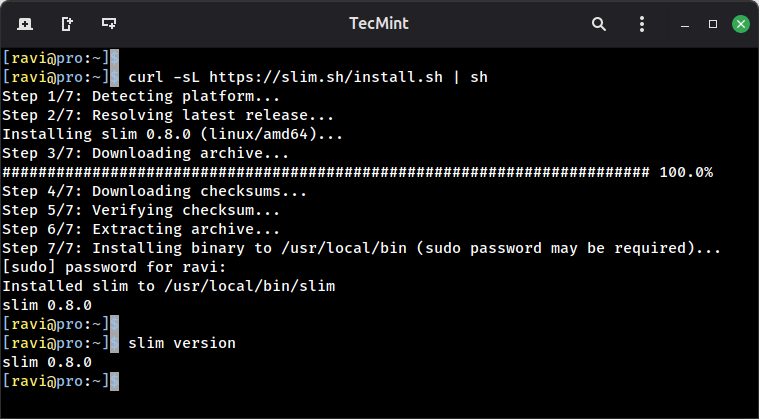
slim provides a one-line install script that downloads the binary and sets it up for your system.
curl -sL https://slim.sh/install.sh | sh
If you prefer to build from source, you will need Go 1.25 or later installed on your system.
git clone https://github.com/kamranahmedse/slim.git
cd slim
make build
make install
After installation, verify it is working:
slim version
Setting Up an HTTPS Local Domain
To demonstrate how slim works in practice, we will use a real example: a project running on port 3000 that we want to access at https://myapp.local.
Start your development server, which could be any local dev server, such as a Node.js app, a Python Flask app, a Go server, anything listening on a local port.
For this example, assume your app is already running on port 3000.
slim start myapp --port 3000
The first time you run this, slim will generate the root CA, register it with the system trust store, create a certificate for myapp.local, update /etc/hosts, and start the background proxy daemon.
Sample output:
slim start myapp --port 3000

✔ Root CA generated and trusted
✔ Certificate created for myapp.local
✔ /etc/hosts updated → myapp.local → 127.0.0.1
✔ Port forwarding configured (443 → 10443)
✔ Proxy started

https://myapp.local → localhost:3000
Now open your browser and go to https://myapp.local, you will see that your project loads over HTTPS with a valid certificate and no browser warnings.
Managing Your Local Domains
Here are the slim commands you will use day to day:
slim list                    # Show all currently active local domains
slim list --json             # Same output in JSON format (useful for scripting)
slim logs                    # Show access logs for all domains
slim logs -f myapp           # Tail live access logs for a specific domain
slim stop myapp              # Stop proxying a specific domain
slim stop                    # Stop all running domains and the proxy daemon
Sample output of slim list:
slim list

DOMAIN            PORT   STATUS    UPTIME
myapp.local       3000   running   14m
Additional slim Options
slim gives you a few useful flags when starting a domain.
Log modes – Control how much access logging you want:
slim start myapp -p 3000 --log-mode full       # Full request/response logs (default)
slim start myapp -p 3000 --log-mode minimal    # Just method, path, and status code
slim start myapp -p 3000 --log-mode off        # No access logging
Wait for upstream – If your dev server takes a few seconds to start, use --wait so slim holds off until the upstream port is actually ready before returning:
slim start myapp -p 3000 --wait --timeout 30s
Uninstall – If you want to remove everything slim has set up, including the CA, certificates, hosts entries, port forwarding rules, and config files, run:
slim uninstall
All of slim’s runtime data lives under ~/.slim/:
~/.slim/config.yaml     # Configuration file
~/.slim/certs/          # Per-domain certificates
~/.slim/ca/             # Root CA certificate and key
~/.slim/access.log      # Access logs for all proxied domains
If you ever need to manually inspect or back up a certificate, this is where to look.
Why This Matters for Local Development
Beyond the convenience of not seeing browser warnings, running your local project under HTTPS with a real .local domain unlocks several browser features that only work on secure origins:
- Service Workers – Required for PWA development and offline-first testing.
- Geolocation API – Browsers block this on non-HTTPS origins.
- Clipboard API – Read/write clipboard access requires HTTPS.
- Camera and Microphone – getUserMedia will not work over plain HTTP.
- HTTP/2 – Browsers only negotiate HTTP/2 over TLS, so testing HTTP/2 behavior requires HTTPS.
- Secure Cookies – Cookies with the Secure flag are only sent over HTTPS, making session testing on localhost unreliable without it.
If any part of your project relies on these features, testing on plain localhost will give you different behavior than production. slim closes that gap without any manual setup.
Pro Tip: If you are working with multiple projects simultaneously, you can run multiple slim start commands pointing at different ports – each gets its own .local domain, its own certificate, and shows up in slim list.
slim Project: https://github.com/kamranahmedse/slim
![How to Check Linux OS Name and Kernel Version [6 Quick Methods]](https://matchpage.info/wp-content/uploads/2026/03/how-to-check-linux-os-name-and-kernel-version-6-quick-methods-8-768x496.png)