Updated: This guide has been refreshed with modern troubleshooting steps, safer alternatives, and production-ready practices.
Like any other operating system, GNU/Linux has implemented memory management efficiently and even more than that. However, if any process is eating away your memory and you want to clear it, Linux provides a way to flush or clear the RAM cache.
In this article, we will show you how to clear RAM memory cache, buffer, and swap space on a Linux system, along with when you should (and shouldn’t) do it.
Table of Contents
- Understanding RAM Memory Cache, Buffer, and Swap Space
- Should You Clear RAM Cache? (Quick Decision Guide)
- Check Memory Usage Before Clearing
- How to Clear RAM Cache in Linux
- How to Clear Swap Space in Linux
- Verify Your Changes
- Better Alternatives to Manual Cache Clearing
- Troubleshooting Common Memory Issues
- Frequently Asked Questions
Understanding RAM Memory Cache, Buffer, and Swap Space
Before we jump into clearing memory, let’s understand what these terms mean and how they work on your Linux system.
RAM Memory Cache
The RAM memory cache is a mechanism used by the Linux kernel to store frequently accessed data in memory. When you read a file from your hard disk, the kernel keeps a copy in RAM so that the next time you need it, it can be retrieved much faster.
This speeds up your system significantly. However, in some rare cases, an overloaded cache might hold outdated data that’s no longer needed.
Buffer
Buffers work similarly to cache but serve a different purpose. Buffers temporarily hold data that’s being transferred between different parts of your system, like between your CPU and hard disk.
Think of it as a waiting area where data sits before being written to disk or after being read from disk. While buffers improve performance, too much buffered data can sometimes slow things down.
Swap Space
Swap space is a designated area on your hard disk that acts as virtual memory when your physical RAM runs out. When your RAM is full, the Linux kernel moves less-used data from RAM to swap space to free up memory for active processes.
While swap prevents your system from crashing due to low memory, relying too heavily on swap can slow down your system because hard disks are much slower than RAM.
Should You Clear RAM Cache? (Quick Decision Guide)
Here’s the thing, before you rush to clear your RAM cache, you need to understand when it’s actually necessary. The Linux kernel is designed to manage memory efficiently, and high cache usage is usually a good thing, not a problem.
When You SHOULD Clear Cache
You might need to clear cache in these situations:
- Testing and Benchmarking: You need a clean starting point to measure performance accurately.
- Memory Leak Troubleshooting: A specific application has a known memory leak and you need a temporary fix.
- Development Environment: You’re testing how your application behaves with cold cache.
When You Should NOT Clear Cache
Don’t clear cache in these situations:
- High Cache Usage: Seeing high cache in the
freecommand is normal and beneficial. - Production Servers: Never schedule automatic cache clearing on live servers.
- Before Diagnosis: You haven’t identified what’s actually causing memory issues.
- Low “Free” Memory: Check “available” memory instead, that’s what matters.
Important: The Linux kernel automatically releases cache when applications need memory. Empty RAM is wasted RAM, so the kernel uses it for caching.
Check Memory Usage Before Clearing
Before clearing any cache or buffer, you should always check your current memory status, which will helps you understand if clearing cache will actually help or if there’s a different problem.
Check Current Memory Status
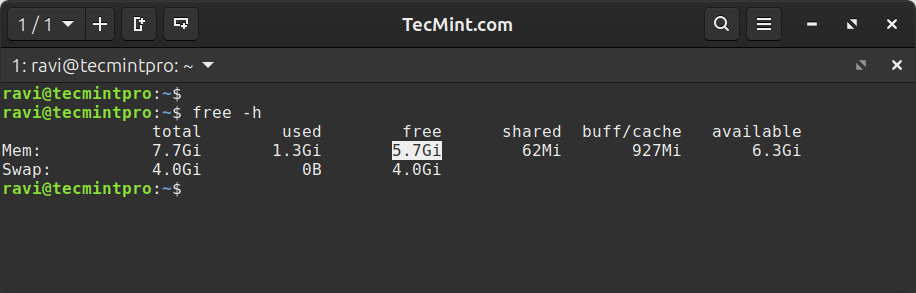
Use the free command to see memory usage in human-readable format (GB/MB) and pay attention to the “available” column that shows how much memory is actually available for new applications, not the “free” column.
free -h
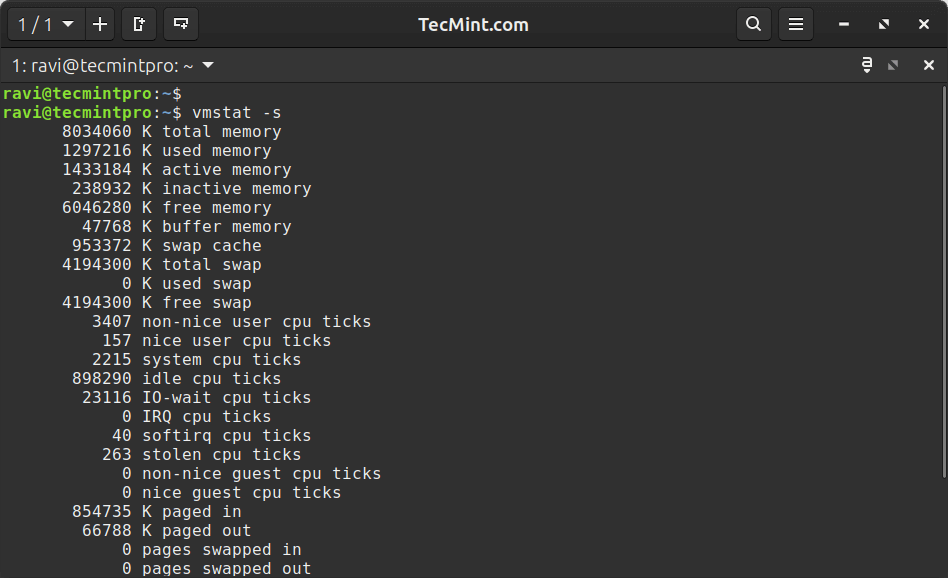
For more detailed statistics, use vmstat command:
vmstat -s
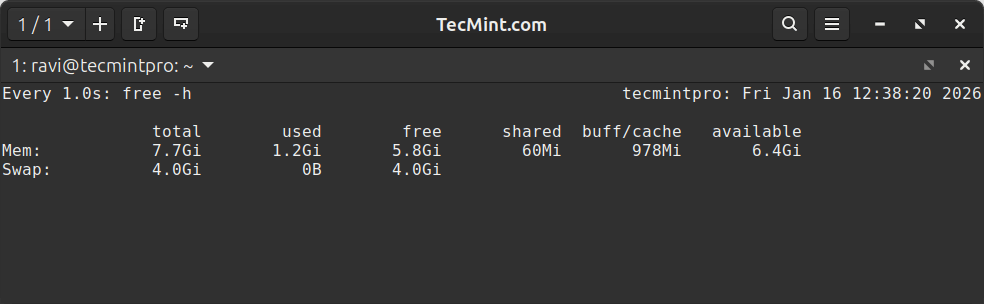
To monitor memory in real-time, use the watch command, which will updates the display every second so you can see memory changes as they happen
watch -n 1 free -h
Find Memory-Hungry Processes
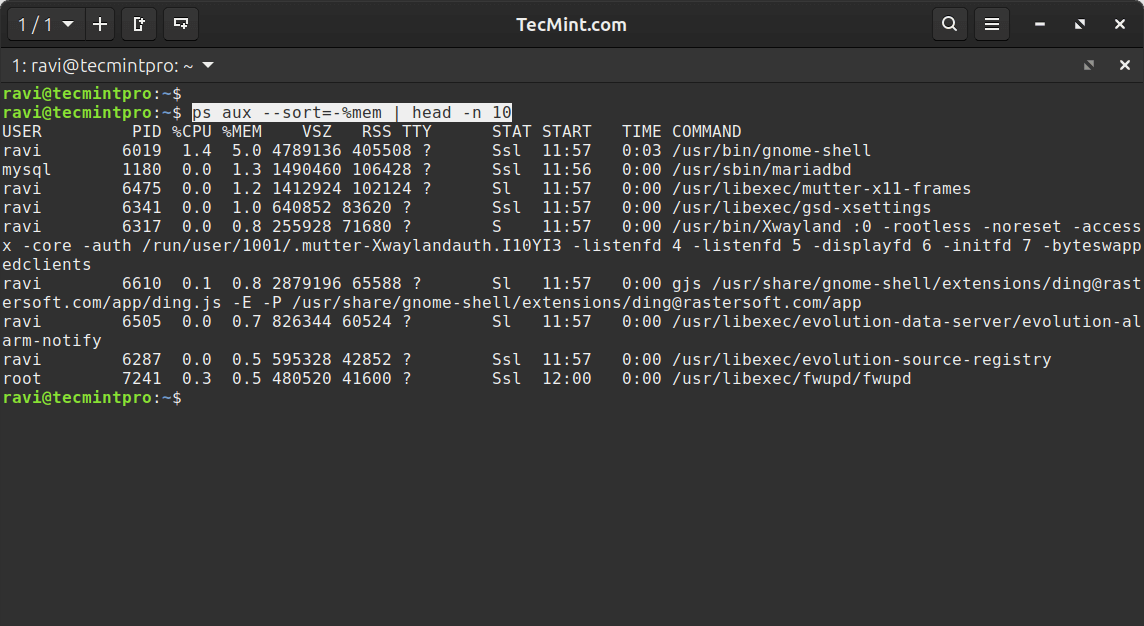
Before clearing cache, identify which processes are actually using your memory using the ps command, which will show your top 10 memory-consuming processes and nine times out of ten, you’ve got a runaway process that needs attention, not a cache that needs clearing.:
ps aux --sort=-%mem | head -n 10
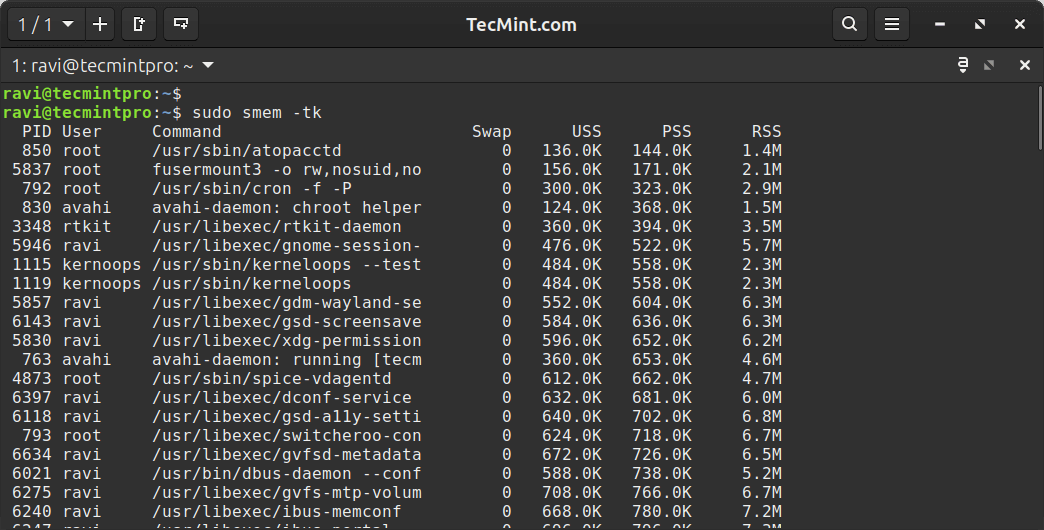
For more detailed memory analysis, install and use smem command:
sudo apt install smem          # Ubuntu/Debian
sudo yum install smem          # RHEL/CentOS
Then run:
sudo smem -tk
Take a Snapshot for Comparison
It’s a good practice to save memory statistics before making changes:
free -h > /tmp/memory-before.txt
vmstat -s > /tmp/vmstat-before.txt
After clearing cache, you can compare the results to see what actually changed.
How to Clear RAM Cache in Linux
Now let’s look at how to clear different types of cache in Linux using the three options privded by the Linux kernel through the /proc/sys/vm/drop_caches file.
Important: Run the sync command first to write any pending data to disk, which ensures no data is lost when you clear the cache.
Method 1: Clear PageCache Only
The PageCache stores recently accessed files and to clear only the PageCache, run:
sudo sync; echo 1 > /proc/sys/vm/drop_caches
If the above command gives a permission error, use this alternative:
echo 1 | sudo tee /proc/sys/vm/drop_caches
This is the safest method for production and enterprise environments because it only clears the file cache without affecting other kernel data structures.
Method 2: Clear Dentries and Inodes
Dentries and inodes are data structures that store information about directories and files.
To clear only dentries and inodes:
sudo sync; echo 2 > /proc/sys/vm/drop_caches
This frees up memory used by directory and file metadata but keeps the actual file cache intact.
Method 3: Clear PageCache, Dentries, and Inodes
To clear everything at once:
sudo sync; echo 3 > /proc/sys/vm/drop_caches
If you get a permission error:
echo 3 | sudo tee /proc/sys/vm/drop_caches
Warning: This is the most aggressive option and don’t use this in production unless you know exactly what you’re doing and why.
Let’s break down what each part does:
sudo: Runs the command with administrator privileges.sync: Writes all pending data from memory to disk.;: Separates multiple commands on the same line.echo 1/2/3: Writes a number to the drop_caches file.> /proc/sys/vm/drop_caches: Sends the output to the kernel’s cache control file.
The /proc/sys/vm/drop_caches file accepts three values:
1: Clears only PageCache (safest).2: Clears only dentries and inodes.3: Clears PageCache, dentries, and inodes (most aggressive).
After clearing cache, check memory usage again:
free -h
You should see an increase in the “available” memory and a decrease in the “buff/cache” column.
Important Notes
According to the Linux kernel documentation:
- Writing to
drop_cachescleans the cache without killing any applications or services. - The cache will start rebuilding immediately as you use your system.
- This is a non-destructive operation – your files are safe.
- Cache clearing is temporary – the kernel will refill the cache as needed.
How to Clear Swap Space in Linux
Swap space can fill up when your system runs low on physical memory. If you’ve freed up RAM and want to move data from swap back to memory, you can clear swap space.
Clear and Re-enable Swap
First, turn off all swap partitions, which will move data from swap back to RAM if there’s enough space available.
sudo swapoff -a
Then, turn swap back on, which will re-enables all swap partitions that are listed in /etc/fstab.
sudo swapon -a
Clearing swap makes sense when:
- You’ve resolved a memory shortage and want to move swapped data back to RAM.
- You’re resizing or reconfiguring swap partitions.
- You’ve added more physical RAM and want everything running from memory.
Important Warning: Never clear swap if your system is low on memory; before doing so, always ensure that you have sufficient available RAM to handle running processes:
free -h | grep Mem | awk '{print "Available: " $7 " / Swap Used: " $3}'
If your available RAM is less than your current swap usage, clearing swap will cause the Out of Memory (OOM) killer to terminate applications, which can crash important services.
Verify Your Changes Actually Helped
After clearing cache or swap, you should verify that it made a positive difference.
Compare Memory Statistics
Check memory after clearing:
free -h
Compare with the snapshot you took earlier:
diff /tmp/memory-before.txt <(free -h)
Look at what changed in the “buff/cache” and “available” columns.
Monitor Memory for a Few Minutes
Watch how your system rebuilds cache:
watch -n 2 'free -h && echo "---" && ps aux --sort=-%mem | head -5'
This updates every 2 seconds and shows you:
- Current memory usage
- Top 5 memory-consuming processes
The cache will start filling up again, which is normal and expected.
Test System Responsiveness
Here’s a simple test to see if cache affects performance:
time ls -lR /usr > /dev/null
Run this command three times:
- Before clearing cache (data is cached).
- Immediately after clearing cache (data not cached).
- Five minutes after clearing cache (cache rebuilt).
Expected results:
- First run: Fast (uses cache)
- Second run: Slower (reads from disk)
- Third run: Fast again (cache rebuilt)
If all three runs are similar, cache wasn’t your problem.
Check Detailed Memory Information
For more details, run the following command, which will shows specific memory values including cached memory, buffers, and available memory.
cat /proc/meminfo | grep -E 'Cached|Buffers|MemAvailable'
Better Alternatives to Manual Cache Clearing
Instead of manually clearing cache (especially on a schedule), consider these smarter approaches that work with the kernel instead of against it.
1. Adjust Swappiness
Swappiness controls how aggressively the kernel moves data to swap. Lower values make the kernel prefer RAM over swap.
Check current swappiness, which will show the default value i.e. 60:
cat /proc/sys/vm/swappiness
For servers, a lower value (10-20) often works better:
sudo sysctl vm.swappiness=10
To make this permanent:
echo "vm.swappiness=10" | sudo tee -a /etc/sysctl.conf
What this does: Tells the kernel to keep more data in RAM and use swap less aggressively.
2. Set Up Proper Memory Monitoring
Instead of guessing when memory is a problem, set up monitoring system with the help of atop tool which provides detailed memory logging.
sudo apt install atop       # Ubuntu/Debian
sudo yum install atop       # RHEL/CentOS
View historical memory usage:
atop -r
Create a simple monitoring script:
#!/bin/bash
AVAILABLE=$(free -m | awk 'NR==2{print $7}')
THRESHOLD=500

if [ $AVAILABLE -lt $THRESHOLD ]; then
    echo "Low memory: ${AVAILABLE}MB available" | mail -s "Memory Alert" [email protected]
fi
Save this as /usr/local/bin/check-memory.sh, make it executable, and add to cron for regular checks by editing your crontab with crontab -e and inserting an entry such as the following to run it every 5 minutes.
*/5 * * * * /usr/local/bin/check-memory.sh
Adjust the schedule as needed to match how frequently you want memory checks to run.
3. Configure Memory Limits for Applications
Prevent applications from using too much memory using systemd with the help of systemctl command, which will limits the httpd service to 2GB of RAM.
sudo systemctl set-property httpd.service MemoryMax=2G
For Docker containers:
docker run -m 2g your-image
4. Tune the OOM Killer
The Out of Memory (OOM) killer terminates processes when system memory becomes critically low, and you can protect important processes by checking and adjusting the OOM score for a given process.
cat /proc/[PID]/oom_score
Protect critical processes (lower score = less likely to be killed):
echo -1000 | sudo tee /proc/[PID]/oom_score_adj
5. Increase Minimum Free Memory
Tell the kernel to keep more memory free with the following command, whih will reserves approximately 64MB of free memory, which helps prevent memory fragmentation.
echo 65536 | sudo tee /proc/sys/vm/min_free_kbytes
Troubleshooting Common Memory Issues in Linux
Instead of blindly clearing cache, diagnose and fix the actual problem with the help of followoing common memory issues and their solutions.
Issue 1: “Out of Memory” Errors Despite Available Memory
Symptoms include applications crashing with OOM errors even though free -h shows available memory, and the correct diagnosis in this situation is to check for memory fragmentation.
cat /proc/buddyinfo
grep -i hugepages /proc/meminfo
The solution is that your system might need large contiguous memory blocks, so you can address this by enabling transparent huge pages.
echo always | sudo tee /sys/kernel/mm/transparent_hugepage/enabled
Issue 2: System Using Swap Despite Available RAM
Symptoms include high swap usage even though free RAM is available, and the diagnosis involves finding what’s in swap using a command.
for file in /proc/*/status ; do
    awk '/VmSwap|Name/{printf $2 " " $3}END{print ""}' $file
done | sort -k 2 -n -r | head
The solution being to lower swappiness (as covered in the alternatives section above) or clear swap space if enough RAM has been freed.
Issue 3: Specific Application Memory Leak
Symptoms include a single process steadily increasing in memory usage over time, and the diagnosis involves monitoring the suspect process.
watch -n 5 'ps aux | grep process-name'
The solution is to restart the application if possible, report the bug to the developers, set memory limits for the application, and use tools like valgrind to identify the leak during development.
Issue 4: Cache Never Gets Released
Symptoms include the cache continuously growing and seemingly never freeing memory, and the diagnosis is that this is usually normal behavior, so you should first verify that there is an actual problem.
free -h
You should check the “available” memory, and if it’s adequate for your needs, there’s no problem, but if you genuinely need more free memory, the solution is to identify and limit memory-hungry applications, add more physical RAM, or adjust kernel memory management parameters.
Issue 5: Page Allocation Failures
Symptoms include system logs showing allocation failures, and the diagnosis involves checking kernel messages.
dmesg | grep -i "page allocation failure"
The solution is that this situation indicates memory fragmentation.
# Increase minimum free memory
echo 65536 | sudo tee /proc/sys/vm/min_free_kbytes

# Enable compaction
echo 1 | sudo tee /proc/sys/vm/compact_memory
If the problem persists, consider rebooting to defragment memory.
Automating Cache Clearing (Not Recommended)
You can automate cache clearing with cron jobs, but this is generally not recommended for production systems. I’m including this section for educational purposes only.
Set Up a Cron Job
Open the crontab editor:
crontab -e
Add one of these lines to clear cache daily at midnight:
# Clear PageCache only (safest if you must automate)
0 0 * * * sync && echo 1 | sudo tee /proc/sys/vm/drop_caches > /dev/null

# Clear everything (not recommended)
0 0 * * * sync && echo 3 | sudo tee /proc/sys/vm/drop_caches > /dev/null
Why This Is a Bad Idea
Scheduling automatic cache clearing can be a bad idea; for example, if you set a script to clear cache at 2 AM and unexpectedly high traffic occurs at that time, all users must fetch data from slower disk storage instead of fast RAM cache, potentially causing server crashes, database corruption, and frustrated users.
So a better approach is to monitor memory, set up alerts, and clear cache manually only when actually needed after proper diagnosis
Is It Safe to Clear Cache on Production Servers?
Short answer: No, don’t do it automatically.
The Linux kernel is designed to manage memory efficiently, automatically deciding when to release cache and when to retain it, so interfering with this process can create more problems than it solves.
Frequently Asked Questions
Will clearing cache delete my files?
No, cache is just a copy of data that already exists on your disk, so clearing it forces the system to re-read from disk the next time that data is needed, but your actual files remain untouched.
How often should I clear RAM cache?
In most cases, you should never clear cache because the Linux kernel manages it automatically and efficiently, and it should only be cleared when troubleshooting specific issues or before running benchmarking tests.
Can clearing cache crash my system?
Clearing cache by itself won’t crash your system, but clearing swap on a memory-constrained system can trigger the OOM killer, which may terminate running applications.
Why does cache fill up again immediately?
This is normal and expected behavior because the kernel caches frequently accessed files to speed up your system, and empty cache would waste RAM, so the kernel uses available memory for caching.
My server has 32GB RAM but only 2GB is “free”. Is this bad?
No, this is actually good because Linux uses “free” RAM for caching since unused RAM is wasted RAM, and you should check the “available” column instead, as that reflects memory available for new applications.
Does clearing cache improve performance?
Usually, no; clearing cache temporarily slows things down because the cache needs to rebuild, and while you might see a brief improvement if the cache held obsolete data, the kernel normally manages this automatically.
What’s the difference between cache and buffer?
Cache stores copies of files read from disk for faster future access. Buffer holds data temporarily during transfer between components (like CPU and disk). Both improve performance, but they serve different purposes.
Is clearing cache the same as clearing browser cache?
No. Browser cache is application-specific data stored by your web browser. System cache (covered in this article) is managed by the Linux kernel and stores file system data for all applications.
Conclusion
Efficient memory management is crucial for a smoothly running Linux system. Regularly clearing the RAM memory cache, buffer, and swap space can significantly enhance system performance. By understanding these mechanisms and employing the provided commands, you can keep your Linux system running at its best.
If you found this guide helpful, share your experience in the comments below. Let us know your thoughts on memory management best practices, especially in production and enterprise environments.
Have memory issues not covered here? Drop a comment and let’s troubleshoot together.